> ## Documentation Index
> Fetch the complete documentation index at: https://docs.cloudidr.com/llms.txt
> Use this file to discover all available pages before exploring further.
# Using Promo Codes
Please follow these steps to apply promo codes
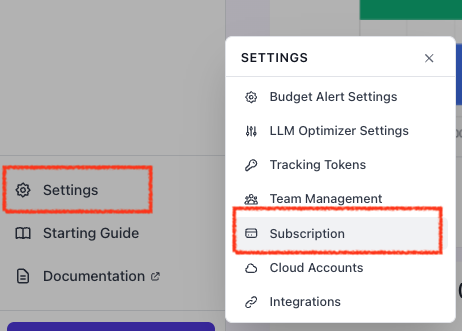
1. In the left side panel, go to **Settings** and select **Subscription**
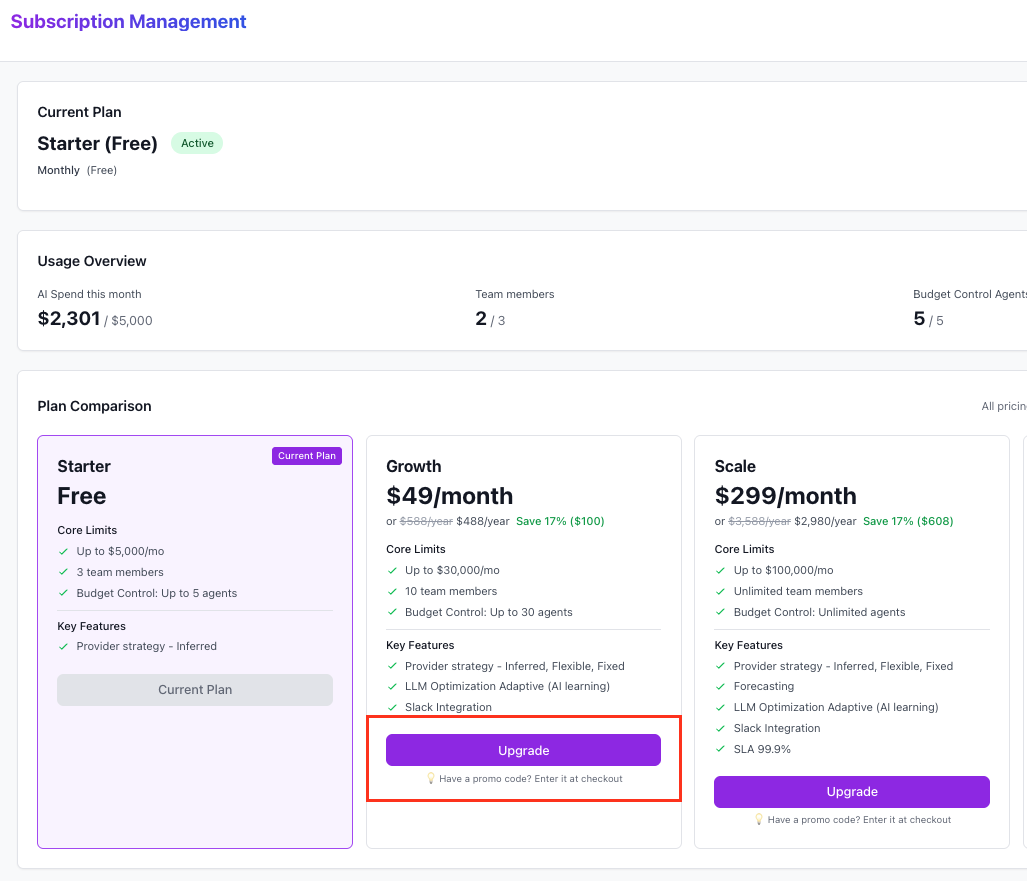
 2. Select the desired plan like "Growth" and click **Upgrade**
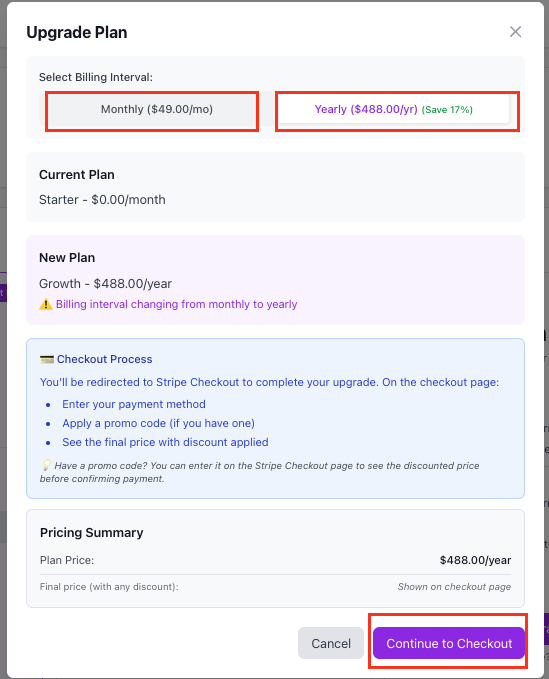
 3. Select between **Monthly** or **Yearly** payment tab. It will update the pricing amount due and then click \*\*Continue to Checkout. \*\*
NOTE: If you hava promotion code, you will select YEARLY and then enter the promotion code in the next step before final checkout,
3. Select between **Monthly** or **Yearly** payment tab. It will update the pricing amount due and then click \*\*Continue to Checkout. \*\*
NOTE: If you hava promotion code, you will select YEARLY and then enter the promotion code in the next step before final checkout,
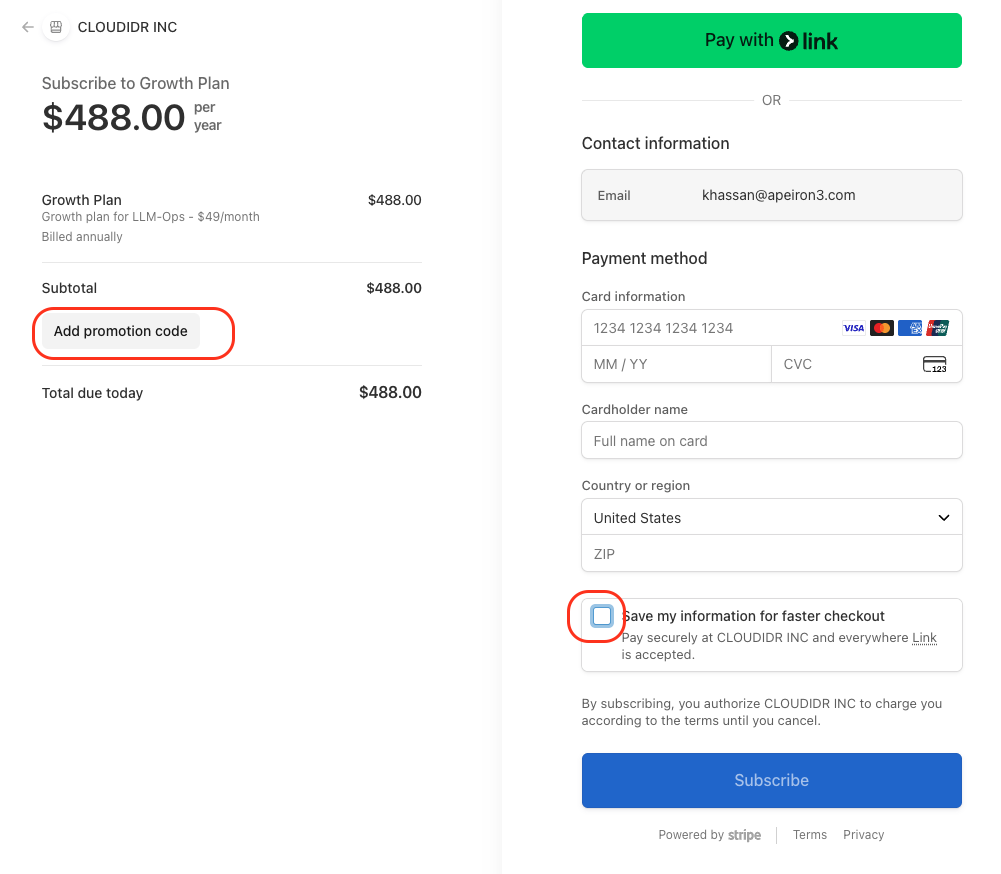
 4. \[OPTIONAL] Enter**Promotion** code if you have one
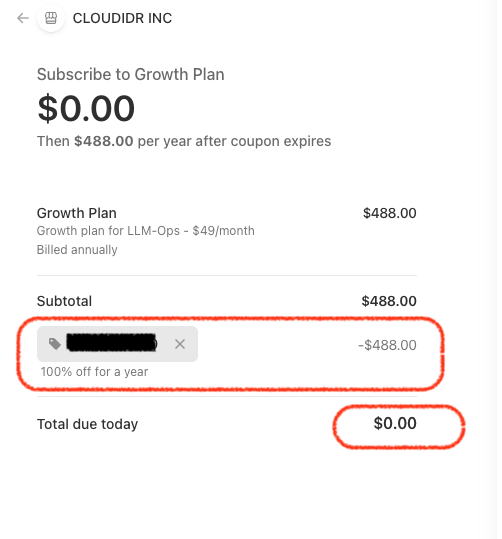
 5. After entering promotion code, the **Total due** will be shown.
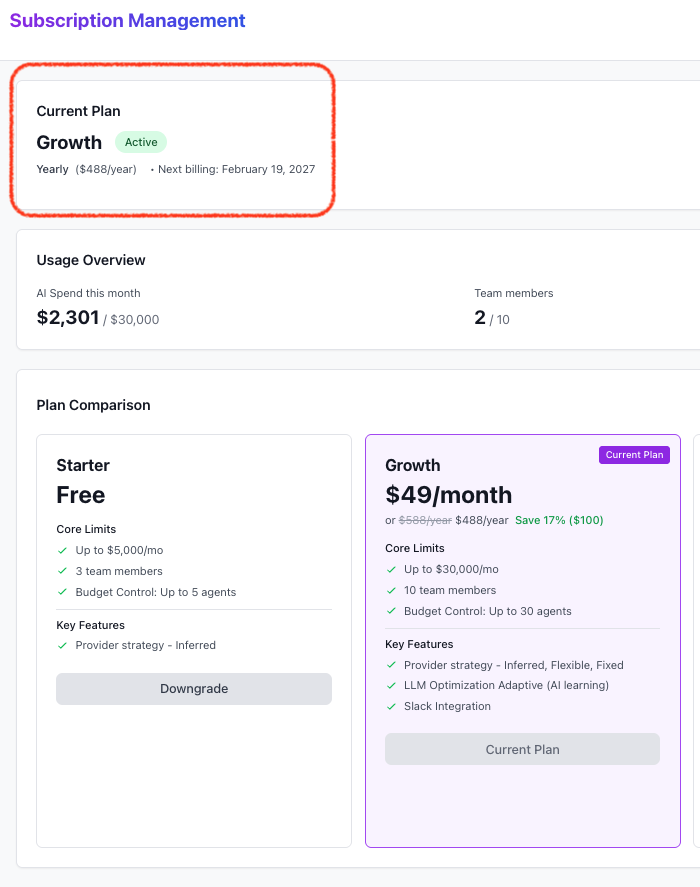
 5. Enter credit card. You can uncheck the \*\*Save my information \*\*if you so desire. You will need to enter the credit card information (as this is required by our payment processor Stripe). After this it will take you to the subscription management page, where you can see your updated plan.