

Overview
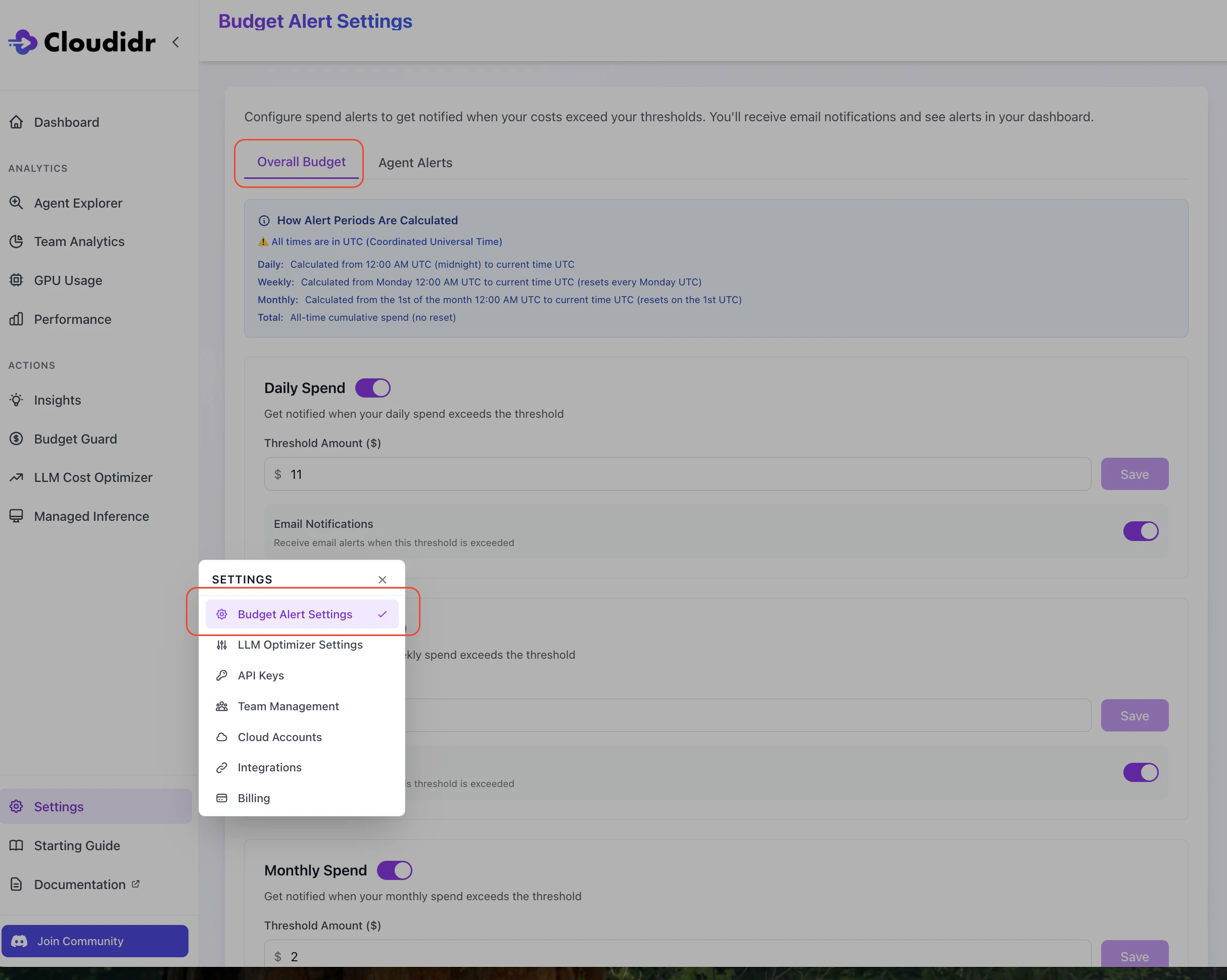
1. Set overall spend alerts (organization-wide)
Configure Daily, Weekly, Monthly, and/or Total org-wide spend thresholds in dollars. For each period you enable:- Set a threshold amount ($).
- Toggle email notifications if you want email when that threshold is crossed.
- Click Save for that block.
2. Set each agent’s monthly budget (and Enforcement on or off)
For each agent that appears (from tracked API usage with X-Agent and related headers):- Enter a Monthly Budget ($) for that agent.
- Choose Enforcement Enabled:
- On — When Current Month Spend (UTC month) reaches the budget, qualifying requests for that agent are blocked (e.g. HTTP 429 from the proxy).
- Off — Spend is not blocked; you can rely on alerts only (see step 1 for org-wide; step 3 for per-agent emails).
- Click Save for that row.
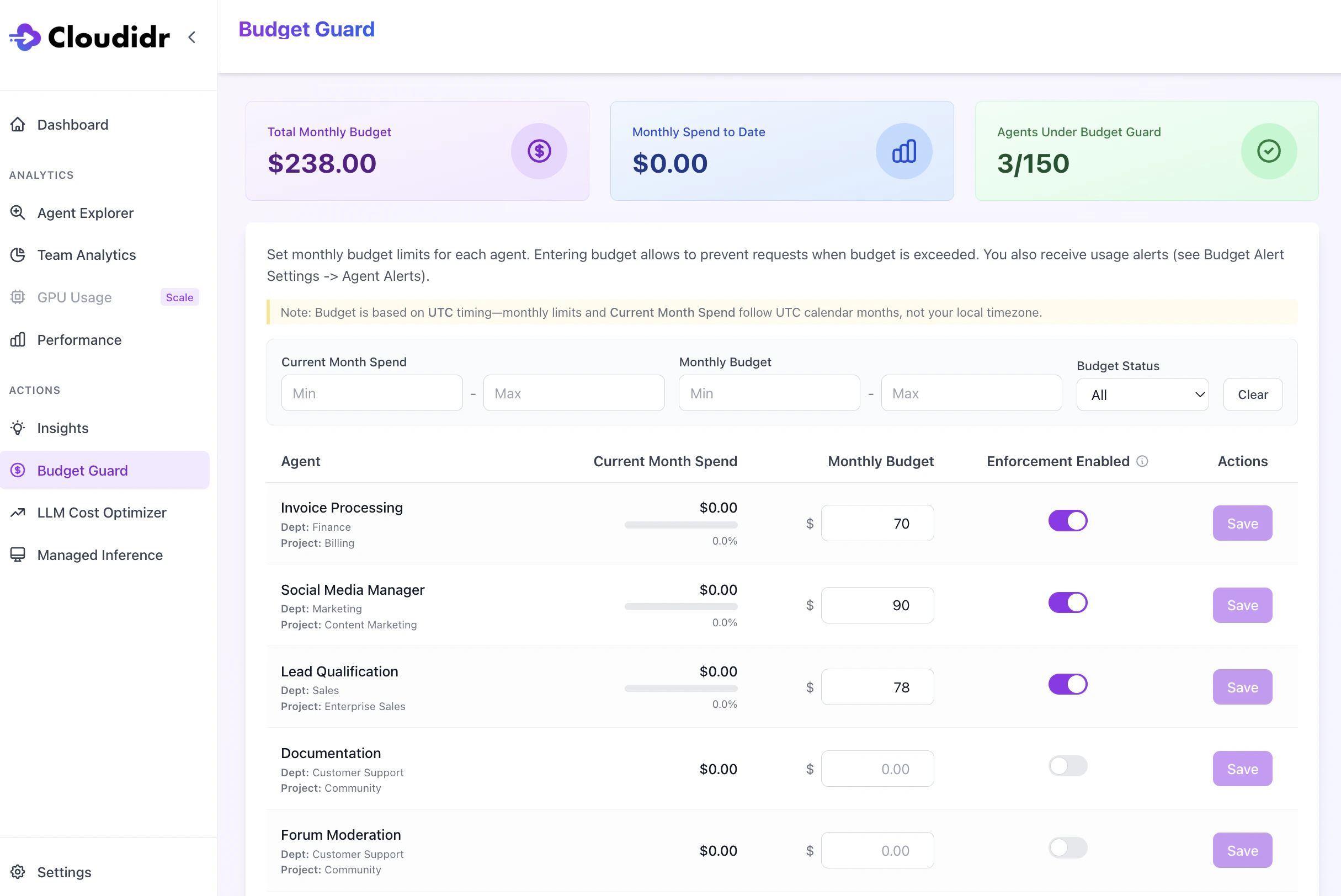
Who can edit: Both organization owners and team member can change budgets and enforcement; other roles may see read-only messaging.
After you save: If you entered a positive monthly budget and/or turned Enforcement on, per-agent email alerts are turned on by default for that agent (80% / 90% / 100% of the monthly budget)—unless you had already turned alerts off for that agent on the Agent Alerts tab (see step 3).
3. Optionally turn off per-agent alerts (Budget Alert Settings → Agent Alerts)
You only need this step if you want fewer emails for an agent that already has a monthly budget set in Budget Guard.- Find the agent in the table.
- Turn Alerts Enabled off for that agent if you do not want 80% / 90% / 100% emails.
- Use Save on that row if shown.
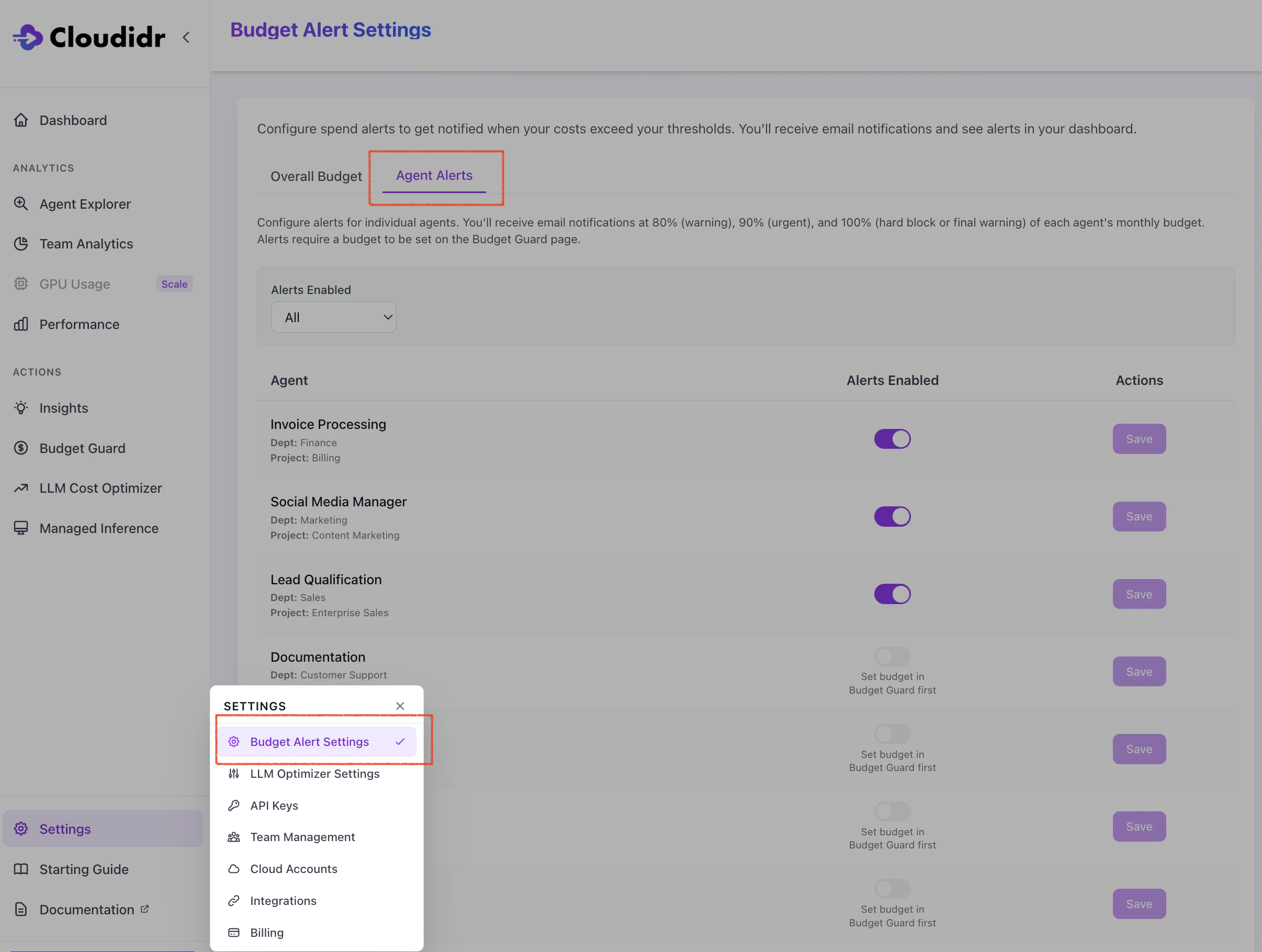
If an agent has no monthly budget yet, the UI may show Set budget in Budget Guard first and you cannot enable alerts until step 2 is done.