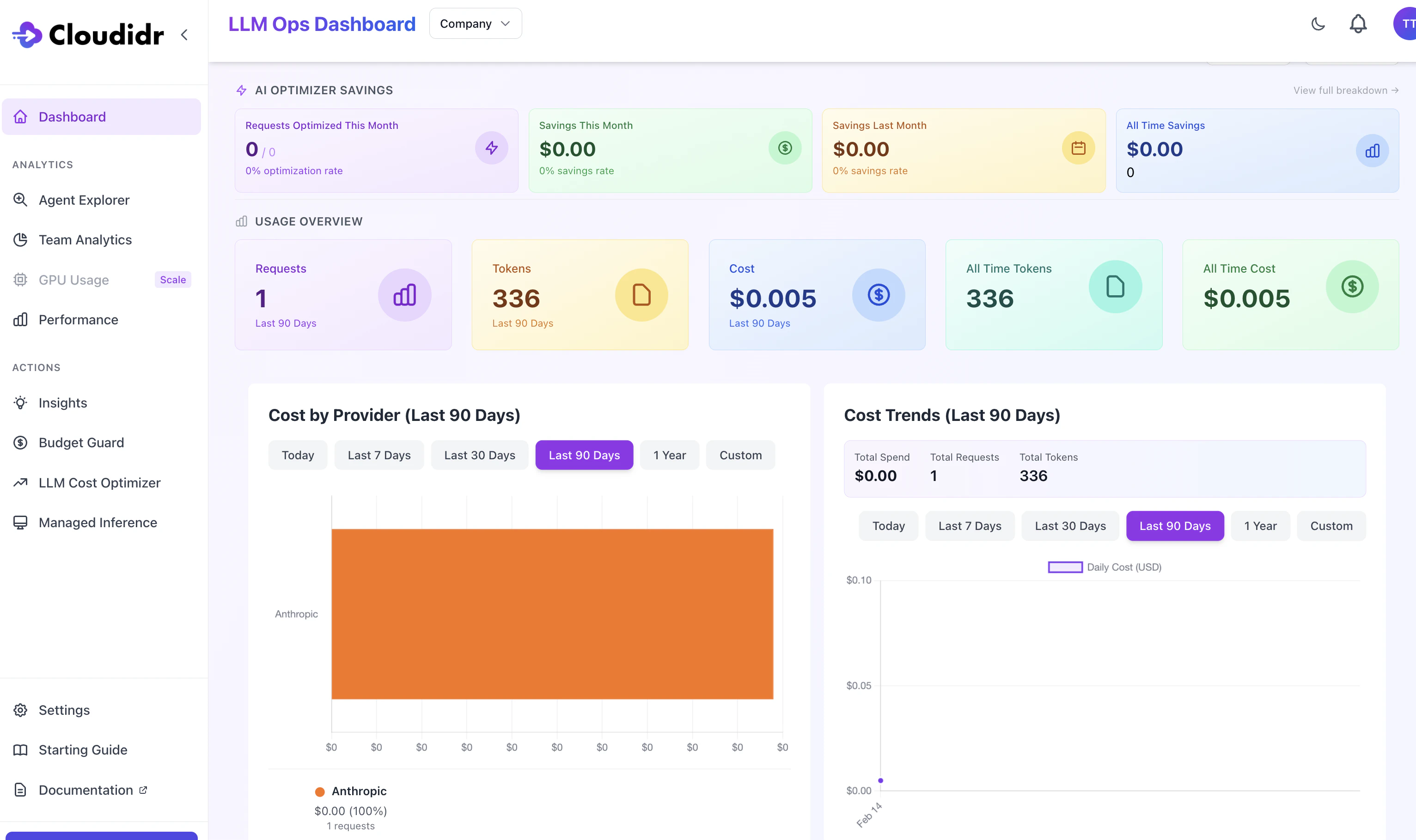

- Sign up with your company name.
- This is a unique company name that cannot be changed later.
- If you are creating the account first time for the company, you will be the Owner (super user).
- Owner can invite team members after logging into the application.
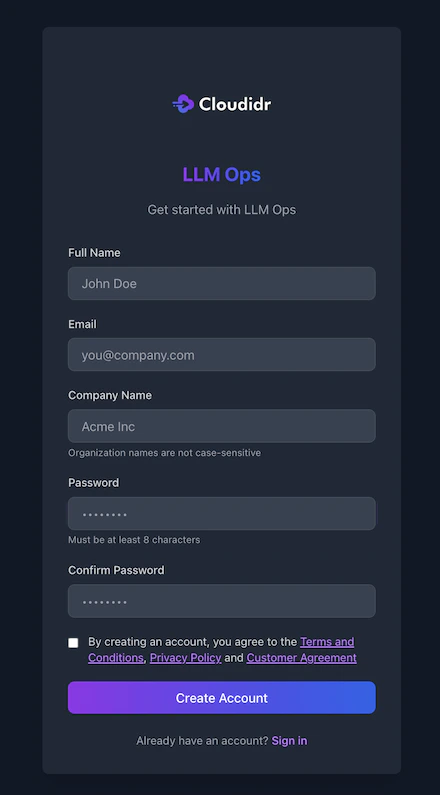
- After you have logged in, you will see an empty dashboard (as you have not executed any API calls with cloudidr API key). You can locate your Cloudidr API Key from left side panel For new users, API Key is also shown at the top of the page under Get Started in 3 steps.
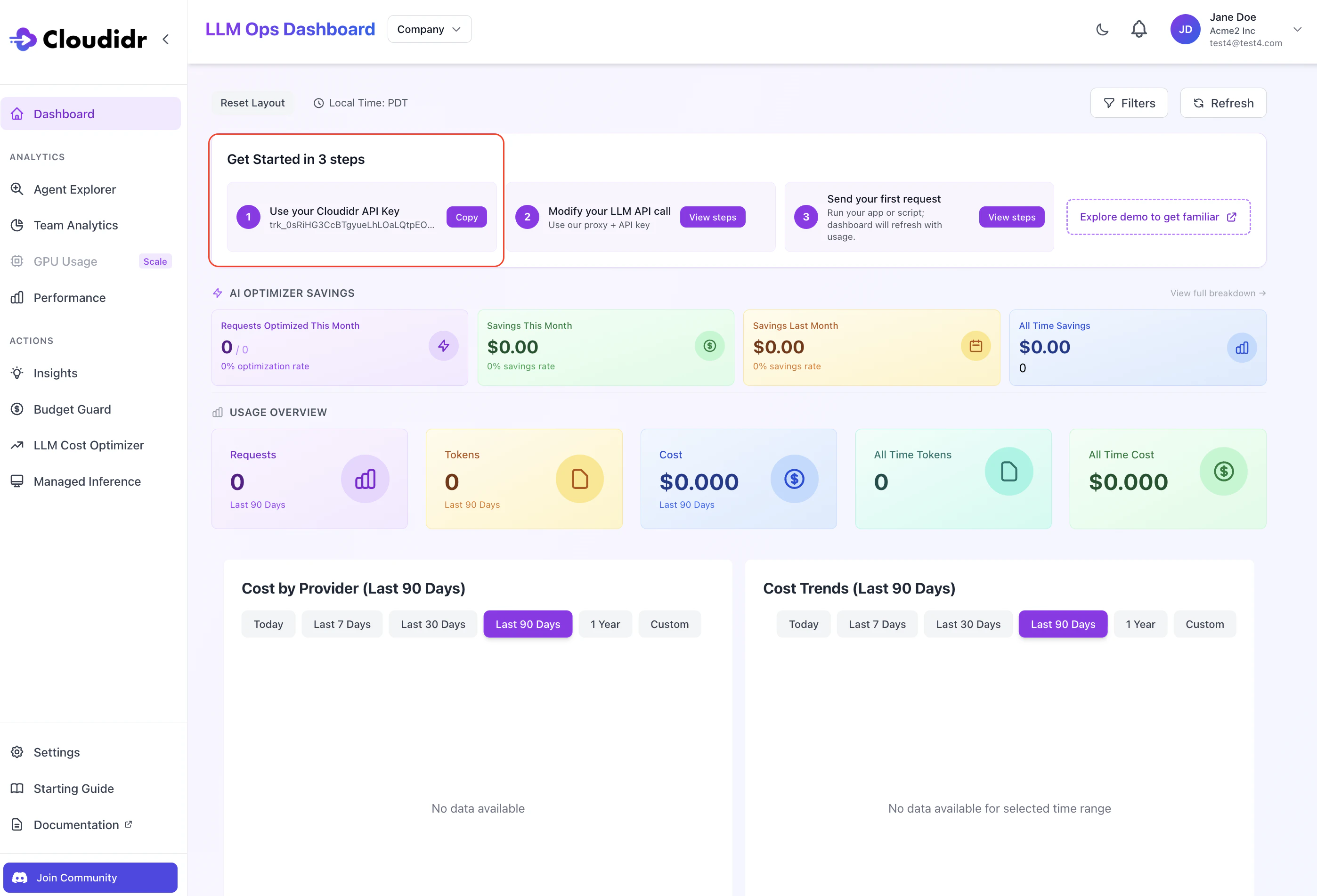
- Use Get Started in 3 steps to execute prompts. You have 2 ways to run your requests. As soon as you send the request it will be logged in the dashboard.
- The easiest way to send a request is to use Playground.
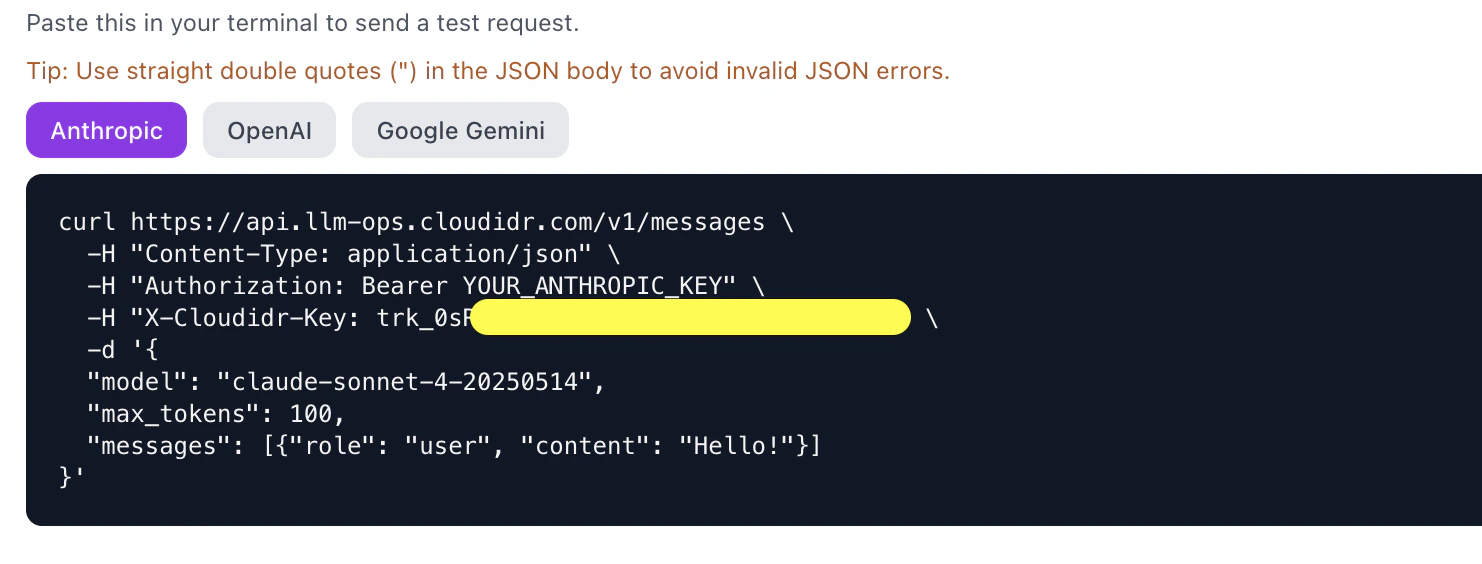
- Alternatively, you can use your linux terminal or code to send the request.
- As shown in previous image, first copy the Cloudidr API Key
- Second, click View steps to open a Setup Guide modal as shown below on how to integrate your Cloudidr API key with your application (alternatively you can use curl as well as shown in next bullet below). You will need to modify base_url and insert X-Cloudidr-Key.
NOTE: you will need to enter your Provider API Key where it shows (YOUR_ANTHROPIC_KEY). Cloudidr never touches nor store your provider key. NOTE: see also Code Integration
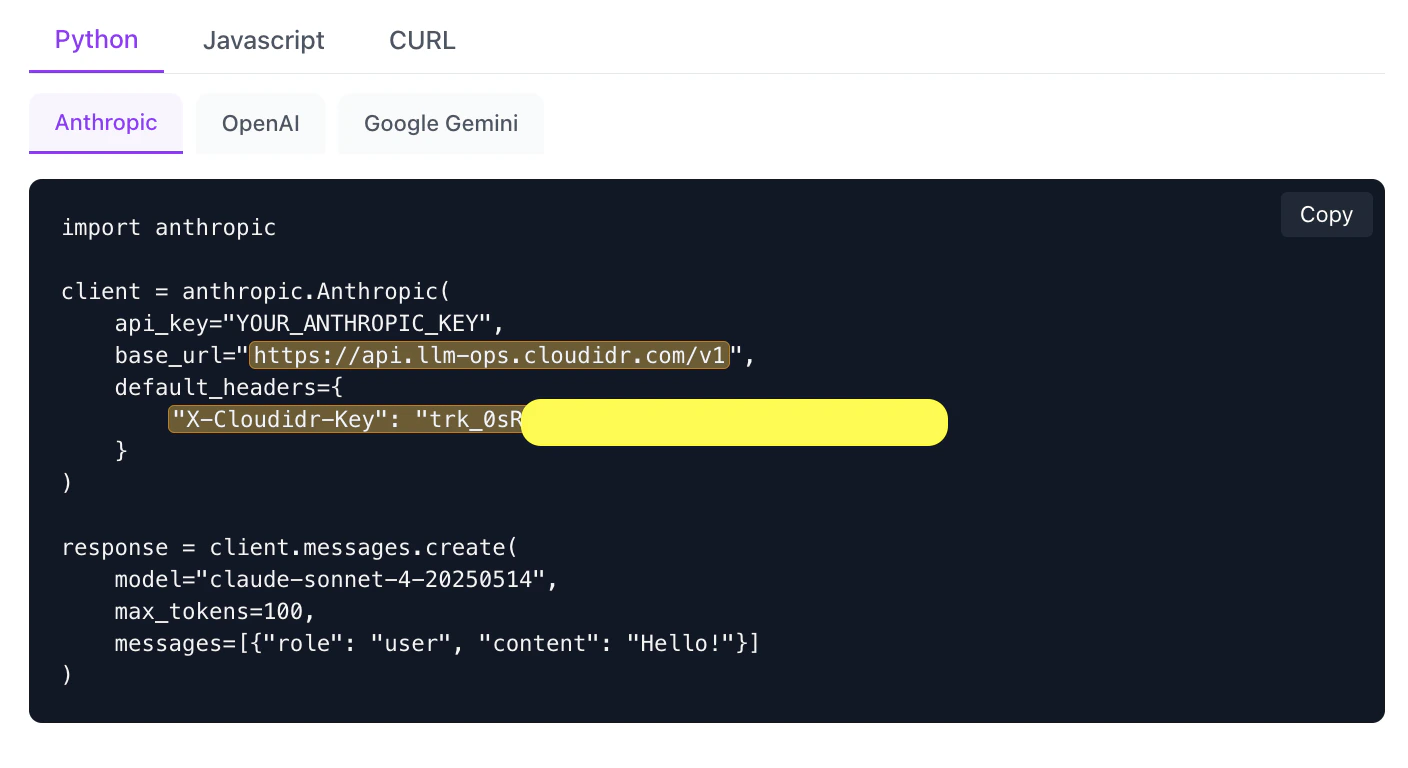
- Curl is a quick way to execute the API call with Cloudidr API Key from your terminal
- After you execute the LLM call, your Usage Overview in dashboard will updated and the Get Started ribbon will disappear.