
Overview
1. LLM Optimizer Settings (organization defaults)
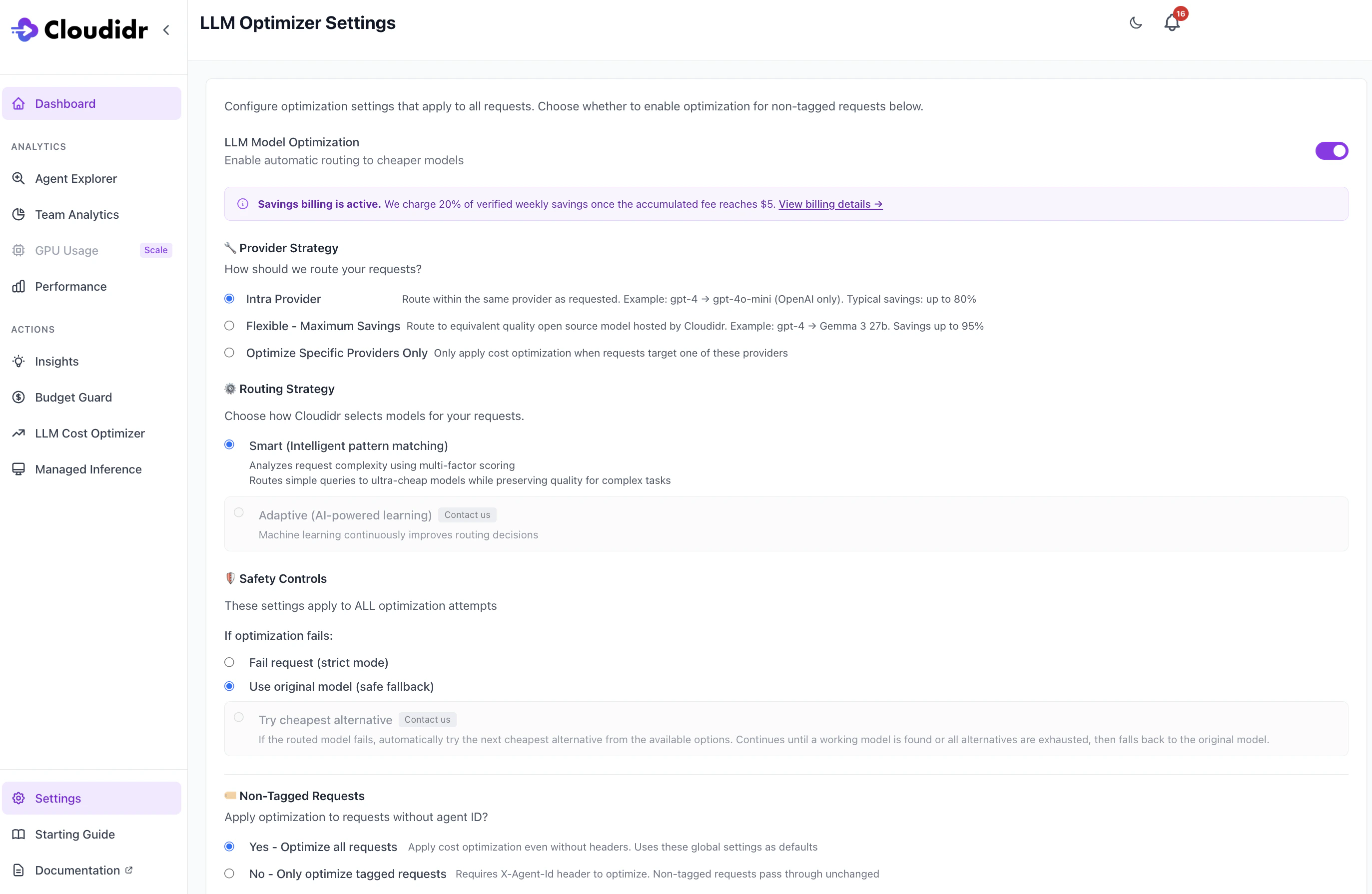
LLM Model Optimization (master toggle)
When on, Cloudidr may route eligible API traffic to cheaper models according to the strategies below. When off, requests use the model the client asked for (no automatic substitution).Provider strategy
Controls how far routing may move from the originally requested provider:- Intra Provider — Stay within the same upstream provider (for example, a more expensive OpenAI model → a cheaper OpenAI model). Typical savings are lower than cross-provider options but preserve provider-specific behavior.
- Flexible - Maximum Savings — May route to Cloudidr-hosted open models for higher potential savings. This path can require prepaid credits; if the balance is zero, the UI may disable or warn until credits are added.
- Optimize Specific Providers Only — Optimization runs only when the request targets one of the selected providers (OpenAI, Anthropic, Google, AWS Bedrock). Use the checkboxes that appear when this option is selected.
Domain Plugins
These plugins enhance model routing ability based on semantics associated with the domain. Available plugins are for banking/financials, healthcare, legal, and engineering.Routing strategy
- Smart (Intelligent pattern matching) — Uses complexity-style scoring so simple prompts can be sent to very cheap models while harder tasks keep stronger models.
- Adaptive (AI-powered learning) — Shown as contact us / not selectable in the current UI; reserved for future or custom rollout.
Safety controls (if optimization fails)
These apply to all optimization attempts (tagged and non-tagged):- Fail request (strict mode) — Return an error if a substitute model cannot be used as planned.
- Use original model (safe fallback) — Fall back to the original model the client requested so the request still completes.
- Try cheapest alternative — Shown as contact us / not selectable in the current UI.
Non-tagged requests
- Yes - Optimize all requests — Optimization may run even when the client does not send tagging headers. Those requests use these global defaults (unless a per-agent rule applies—tagged traffic can still use agent-specific settings when present).
- No - Only optimize tagged requests — Requests without an agent identifier skip optimization and pass through unchanged.
Enabling optimization typically requires a payment method on file or positive org prepaid credits (the product bills a percentage of verified savings—see the in-app banner and subscription screens). If optimization is off and the org has no funding source, the UI explains that a card or credits are needed before turning optimization on.
Recency protection
Recency protection is an optional (default on) layer in Cloudidr’s routing pipeline. If the user’s prompt looks like it needs current world knowledge (news, live markets, who holds a role today, “as of” dates, etc.), Cloudidr does not substitute a cheaper model and keeps traffic on the baseline model the customer selected. Why it exists: Cheaper routed models often have older or different training cutoffs. For “who won the last election?” or “what is Apple’s stock price?” routing to a smaller model can increase factual wrongness even when the prompt is simple in complexity terms. Recency protection trades possible cost savings for lower risk of stale answers on those prompts. What it is not: It does not call an external search, web browse, or “grounding” API. It is phrase-based detection on the prompt text only, then a skip-routing decision.2. LLM Cost Optimizer (savings and breakdown)
Top summary cards
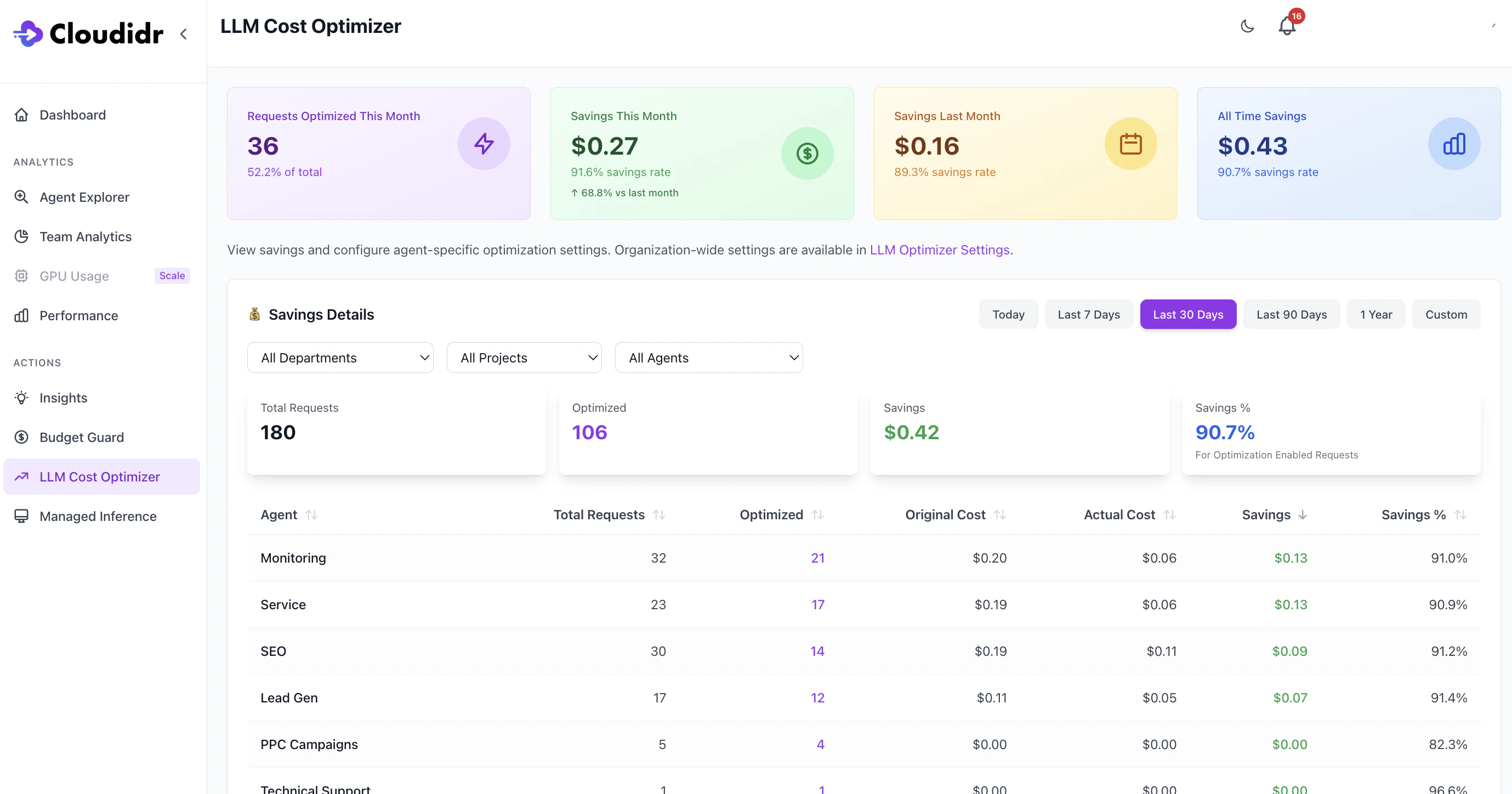
Typical cards include:- Requests Optimized This Month — Count and share of traffic that used an optimized route in the current calendar month (definitions are shown on the page).
- Savings This Month — Dollar savings and savings rate for the current month, often with a comparison to the prior month.
- Savings Last Month — Prior month totals for quick comparison.
- All Time Savings — Cumulative verified savings since tracking began for the org.
Savings Details (filters and aggregates)
Use Department, Project, and Agent filters and the time range (Today, 7 / 30 / 90 days, year, custom) to focus the view. The aggregate line (Total Requests, Optimized, Savings, Savings %) reflects the filtered period and dimensions. Percentages are computed from optimization-enabled traffic as labeled on the page.Agent breakdown table
Each row is one agent dimension (department / project / agent). Metrics include total requests, how many were optimized, original vs actual cost, savings, and savings rate. Non-tagged requests in savings When Yes - Optimize all requests is enabled and the proxy does apply optimization to traffic withoutX-Agent (and related) tags, those requests are stored without an agent name in usage data and reported “Non-tagged”.
3. Advanced: Per-Agent Configuration
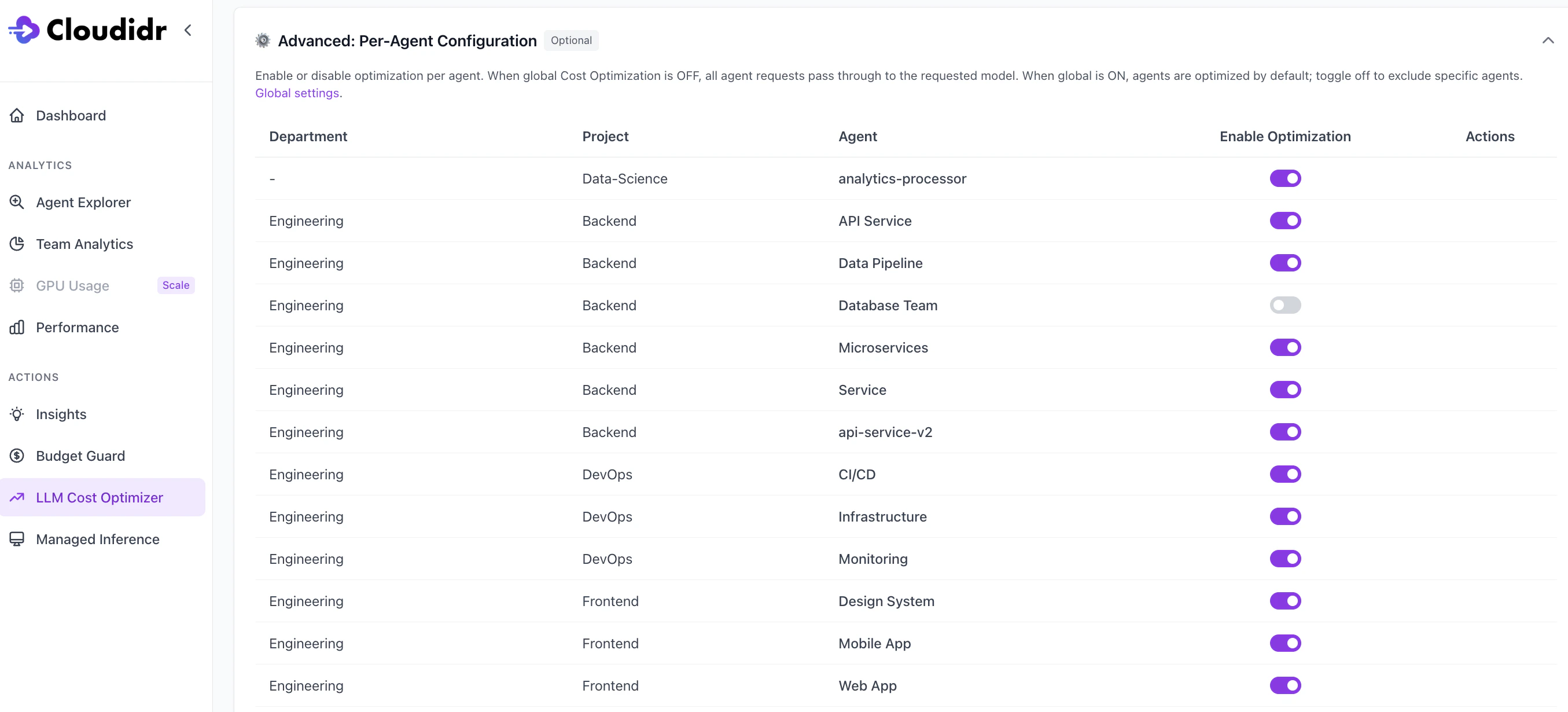
- When global LLM Model Optimization is off, no agent traffic is optimized (all requests use the requested model).
- When global optimization is on, agents are included by default; turn off for specific agents to exclude them from optimization while leaving others unchanged.
if the agent is disabled in Advanced: Per-Agent Configuration, those requests are not optimized, regardless of Yes – Optimize all requests.
Who can change settings
Saving organization defaults (toggle, strategies, safety, non-tagged behavior) requires an organization owner (super_user), same as other org-wide billing-related settings. Team members can open the pages; only owners can persist changes where the API enforces get_super_user.